Epson LX-300 User Manual
Browse online or download User Manual for Dot matrix printers Epson LX-300. Epson LX-300 User's Manual
- Page / 100
- Table of contents
- BOOKMARKS


Summary of Contents
Printing on Continuous Paper . . . . . . . . . . . . . . . . . . . . . 2-7Printing with the push tractor . . . . . . . .
Paper Handling . . . . . . . . . . . . . . . . . . . . . . . . . . . . . 3-6Single sheets do not feed properly . . .
Character tables . . . . . . . . . . . . . . . . . . . . . . . . . . . A-14User-defined characters . . . . . . . .
IntroductionFeatures Your Epson® 9-pin dot matrix printer offers these outstandingfeatures:❏ High-speed printing. Print up to 220 characters per secon
❏ Roll Paper Holder (#8310) uses 81⁄2-inch or 21.6-cm roll paperused by telexes and similar machines. This option is notavailable in some countries.❏
Important Safety Instructions 1. Read all of these instructions before you set up your printer.2. Follow all warnings and instructions marked on the p
11. If you use an extension cord, make sure that the total of theampere ratings on the products plugged into the extensioncord does not exceed the ext
Chapter 1Setting Up the PrinterProof Sign-off:Katagiri _______Moira _______Tim/Linda _______/_______Cindy _______Unpacking the Printer
Unpacking the Printer Your printer box should include these items.In some locations, the power cord is attached to the printer.cCaution: There are sev
Choosing a place for the printerWhen selecting a place to set up your printer, choose a safe,convenient location that provides the following:❏ A flat,
LightButtonsProof Sign-off:Katagiri _______Moira _______Tim/Linda _______/_______Cindy _______Paper supportsEdge guidesPaper guidePaper-
Assembling the Printer Follow the steps in this section to get your printer up and running.Installing the paper-feed knobThe first step in assembling
Attaching the paper supportsYou should install the paper supports before you begin using theprinter.1. Raise the paper guide. Hold one of the paper su
1. Open the printer cover to the upright position, then pull it up to remove it.wWarning: Never move the print head while the printer is turned on; th
3. Turn the ribbon-tightening knob in the direction of the arrow toremove any slack from the ribbon so it is easier to install.4. Insert the ribbon ca
5. Use a pointed object, such as a ball point pen, to guide the ribbon between the print head and ribbon guide. Turn theribbon tightening knob to help
Plugging in the printer1. Make sure the power switch on the printer is turned off. It is off when the N side of the switch is pressed down.2. Check th
Running the Self Test The built-in self test function demonstrates that the printer isworking properly. You can run the test with either continuouspap
2. While holding down the LF/FF button, turn on the printer. ThePAUSE light flashes.3. Slide the left edge guide until it locks in place at the guide
4. Slide a sheet of paper down firmly between the edge guides until it meets resistance. The printer loads the sheetautomatically. Press the PAUSE but
Connecting the Printer to Your Computer Your printer includes both a Centronics®-compatible parallelinterface and an EIA-232D serial interface. Before
EPSON®LX-300All rights reserved. No part of this publication may be reproduced, stored in a retrievalsystem, or transmitted in any form or by any mean
1. Turn off both the computer and the printer. Plug the parallelcable connector securely into the printer’s parallel interface.Squeeze the wire clips
Using the serial interface1. Turn off both the computer and the printer. Plug the serial cable connector securely into the printer’s serial interface.
2. Guide the interface cable through the slot on the side of theprinter so that it does not block the paper supply.3. Plug the other end of the cable
Microsoft Windows 3.1 and all Windows programsIf Windows is installed on your computer system, follow the stepsbelow to install the right driver
Using non-Windows softwareMost application programs let you specify the type of printer youuse so that the program can take full advantage of the prin
Chapter 2Using the PrinterProof Sign-off:Ito _______Courtier _______Koyama _______Using the Control Panel . . . . . . . . . . . . . . .
Using the Control Panel You can control simple printer operations—such as line feeding,form feeding, loading and ejecting paper, and selectingfonts—wi
If you hold down the FONT button while you turn on the printer,you enter the Printer Setting mode, where you can change manyof the printer’s settings.
Selecting fontsTo choose one of the four internal fonts listed on the control panel,press the FONT button. The two font lights come on (N) and go off(
Printing on Single Sheets You can use the paper guide to print on single sheets with a widthof 182 mm (7.2 inches) to 257 mm (10.1 inches).Note:You ca
FCC Compliance StatementFor United States UsersThis equipment has been tested and found to comply with the limits for a Class B digitaldevice, pursuan
Getting the results you expectWhen you print on single sheets, you may notice that the printerprints the first page of your file correctly, but then p
Printing on Continuous Paper Your printer can handle continuous paper with a width of 101 mm(4.0 inches) to 254 mm (10.0 inches). Depending on where y
2. Release the sprocket units by pulling the sprocket locks forward.3. Slide the left sprocket unit using the scale on the printer as aguide. The prin
4. Make sure your paper has a clean, straight leading edge. Openthe sprocket covers. Fit the first holes of the paper over thesprocket pins and then
6. Slide the left edge guide to the center until it stops at the guidemark. Then slide the right edge guide to the opposite guidemark.7. Turn on the
When you send more data, the paper automatically feeds back tothe loading position. If you want to change the position whereprinting begins on the pag
2. Squeeze the tractor’s lock tabs gently and pull the tractor awayfrom the printer. Remove the printer cover.3. Lift the tractor forward to the mount
4. Release the sprocket units by pulling the sprocket locks forward.5. Insert the paper into the paper slot as shown below and pull itup. Position the
6. Slide the left sprocket unit so that its sprockets match theposition of the holes in the paper and lock the unit in place.Then slide the right spro
8. To separate the incoming paper from the printed paper, attachthe paper guide. Hold it horizontally and fit its notches overthe printer’s mounting p
Where to Get Help forUnited States UsersEpson America provides local customer support and servicethrough a nationwide network of authorized Epson deal
For multi-part forms and labels, you should not print any closerthan 0.5 inch or 13 mm from either side of the paper. Forinformation on the printable
3. Close the cover. When you finish printing, move thepaper-thickness lever back to position 0.Multi-part formsYou can use the built-in tractor to pr
❏ Because labels are especially sensitive to temperature andhumidity, use them only under normal operating conditions.Make sure the printing stays ent
Changing the Printer Settings Your printer has internal settings that control simple functionssuch as the page length and character set. These setting
2. Hold down the FONT button while you turn on the printer.If you are using single sheets, insert a sheet of paper. Theprinter automatically loads the
Table BFONT 1lightFONT 2lightPAUSE light SettingGo toSubmenuF O OCharacter spacing Table CF N OShape of zero Table DO F OSkip-over-perforation Table E
8. See the appropriate table in your printed instructions. Press the FONT button to move through the settings in the table. Theprinter beeps twice eac
Character tableCharacter tables contain the characters and symbols used indifferent languages. See the Appendix for specific characters.Auto line feed
Bit rate, parity bit, data length, and ETX/ACKThese options are available only when the interface is set to Serial.See your computer manual for the ap
4. Hold the cut-sheet feeder in both hands and press on the latchlevers. Fit the notches in the cut-sheet feeder over themounting posts on the printe
For United Kingdom UsersEpson product guaranteeUnder the law, goods sold must comply with their description andmust be of merchantable quality and fit
6. Pull the paper-set levers all the way forward until the paperguides retract and lock open to allow for paper loading.7. Take a stack of paper and f
12. Attach the paper guide to the cut-sheet feeder as shown below.13. Open the printer cover. Place the printout guide in the middle.Close the printer
Note:To remove the paper guide from the cut-sheet feeder, press bothrelease tabs and pull out the paper guide.You can easily switch between continuous
5. Open the sprocket covers. Fit the holes of the paper over thetractor pins of the sprocket units and adjust the sprocket unitsas necessary. (See “Pr
2. Position the roll paper holder beneath the printer as shownbelow. Fit the two holes in the base onto the two positioningpegs on the bottom of the p
7. Install the paper guide. Slide the left edge guide to the centeruntil it stops at the guide mark. Then slide the right edgeguide to the opposite gu
2. Install the motor unit in the right hand corner of the printer, with the gear facing the center of the printer. Push it downfirmly to fit the metal
5. Turn the ribbon-tightening knob in the direction of the arrow to remove any slack in the ribbon.6. Insert the ribbon cartridge into the printer as
After you install the color ribbon cartridge, run the self test asshown on page 1-10. If the top or bottom edge of the characters in the self test are
Chapter 3TroubleshootingProof Sign-off:Katagiri _______Moira _______Tim/Linda _______/_______Cindy _______Problems and Solutions . .
The guarantee is restricted to the performance of the productalone, and Epson (UK) Limited does not accept responsibility forany consequential loss or
Problems and Solutions Most problems you may encounter while operating your printerhave simple solutions. You can check the operation of your printer
The lights come on briefly and then go off. The lights stay off evenwhen the power is turned on again.Check that the printer’s voltage rating matches
The printer makes a strange noise, the beeper sounds five times, andthe printer stops abruptly.Turn off the printer and check for a paper jam, a ribbo
Dots are missing in random positions.Either there is too much slack in the ribbon or the ribbon has comeloose. Re-install the ribbon cartridge as desc
If you are using continuous paper, change the page length in thePrinter Setting mode. See “Changing the Printer Settings” onpage 2-20. Regular gaps oc
The paper may be too long. Use paper that is within the specifiedrange. See the paper specifications in the Appendix.Continuous paper does not feed pr
The paper does not eject properly.The page may be too long. Tear off the fresh supply of paper andeject the page from the printer. Use only paper that
Two or more sheets feed at one time.You may have loaded too many sheets in the cut-sheet feeder’s bin.You may have forgotten to fan the stack of paper
Using the pull tractor with the push tractor, continuouspaper does not feed properlyPaper feed is crooked or the paper jams.The pull tractor and push
AppendixProof Sign-off:Ito _______Courtier _______Koyama _______Printer Specifications . . . . . . . . . . . . . . . . . . . . .
The blue wire must be connected to the terminal in the plugmarked with the letter N or coloured black.The brown wire must be connected to the terminal
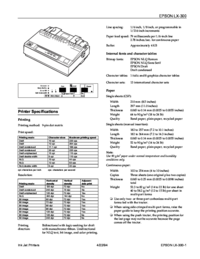
Printer Specifications PrintingPrint method: 9-pin impact dot matrixPrint speed: Draft, 264 characters/second at 12 cpi220 characters/second at 10 cp
PaperSingle sheets (CSF):Width: 182 to 216 mm (7.2 to 8.5 inches)Length: 210 to 364 mm (8.3 to 14.3 inches)Thickness: 0.07 to 0.12 mm (0.0028 to 0.004
Labels:Size: 102 to 254 mm (4 to 10 inches) width forbacking sheet63.5 × 23.8 mm (2.50 × 0.94 inches)minimum for a labelThickness: 0.07 to 0.09 mm (0.
Printable area:Single sheets and envelopesA The minimum top margin is 5.3 mm (0.2 inches).B The minimum left margin is 3 mm (0.12 inches). The minimu
MechanicalPaper-feed methods:FrictionPush tractorPush-pull tractor (with optional pull tractor unit)Pull tractor (C80030✽)Cut-sheet feeder (option C80
Power consumption Approx. 30 W (during self-test printing inDraft mode at 10 cpi)EnvironmentalTemperature:Operation 5 to 35°C (41 to 95°F)Storage −20
Serial interface specificationsThe serial interface has the following characteristics.Bit rate:300, 600, 1200, 2400, 4800, 9600, 19200 bps(selectable)
Printer Settings The table below lists the printer settings that you can change from thecontrol panel. Underlined options indicate the factory default
Command Summary Sending printer commandsMost actions your printer performs are controlled by your software.Software commands instruct the printer to p
Printer operationASCII Dec. Hex. DescriptionESC @ 64 40 Initialize PrinterDC1 1711Select PrinterDC3 19 13 Deselect PrinterESC s 1/0 115 73 Turn Half-S
ContentsIntroductionFeatures . . . . . . . . . . . . . . . . . . . . . . . . . . . . . . . 0-1Finding Your Way Around
ASCII Dec. Hex. DescriptionESC J n74 4A Perform n/216-inch Line FeedVT 11 0B Tab VerticallyESC B nn66 42 Set Vertical TabsUp to 16 tabs entered in asc
Overall printing styleASCII Dec. Hex. DescriptionESC x n120 78 Select NLQ or Draftn = 1: NLQ0: DraftESC k n107 6B Select NLQ Fontn = 0: Roman1: Sans S
ASCII Dec. Hex. DescriptionESC S0 83 53 Select Superscript ModeESC S1 83 53 Select Subscript ModeESC T 8454Cancel Superscript/Subscript ModeESC4 52 34
d2 d3 Table name d2 d3 Table name00Italic14 0PC 866 (Russian)*10PC 437 (USA)15 0PC 869 (Greek)*116PC 437 Greek (Greek)*16 0USSR GOST (Russian)*30PC 85
ASCII Dec. Hex. DescriptionESC % n37 25 Select User-Defined Setn = 0: Normal set1: User-defined setColor printingASCII Dec. Hex. DescriptionESC r n11
IndexAAdjustingloading position, 2-5paper-thickness lever, 2-16Assembling printer, 1-4–9Attaching paper supports, 1-5Auto line feed, 2-23tear off, 2-2
MMicrosoft Windows, 1-17MICRO ADJUST, 2-3Multi-part forms, 2-17NNon-Windows software, 1-18OOptionsinstalling and using, 2-24– 34troubleshooting, 3-8–
TTractor, 2-32pull, 2-11– 15push, 2-7– 11unit, 2-28– 29Troubleshooting, 3-1– 11UUnpacking printer, 1-2Upgrade kit, color, 2-31– 34Usingcommand summary
LBlueberry REV.EA5 size Index95/04/174 Index
EPSON OVERSEAS MARKETING LOCATIONSEPSON AMERICA, INC.20770 Madrona Ave.P.O. Box 2842Torrance, CA 90509-2842Phone: (800) 922-8911Fax: (310) 782-5220E
More documents for Dot matrix printers Epson LX-300

Related products and manuals for Dot matrix printers Epson LX-300
 (119 pages)
(296 pages)
(119 pages)
(296 pages)
 (2 pages) (176 pages)


 (64 pages)
© 2020, manymanuals.com. All rights reserved. | 0.058 s |
 Manymanuals.com
 Manymanuals.de
 Manymanuals.fr
 Manymanuals.it
 Manymanuals.pl
 Manymanuals.cz
 Manymanuals.es
 Manymanuals-pt.com
Comments to this Manuals